Address
5, Elgin Rd, Sreepally, Bhowanipore, Kolkata, West Bengal 700020 Landmark - Ground floor of The Bhawanipur Education Society College

The First Impression Starts Long Before The Interview
The Technical Checklist: Setting Up Your Audio, Lighting, and Background for Remote IT Rounds
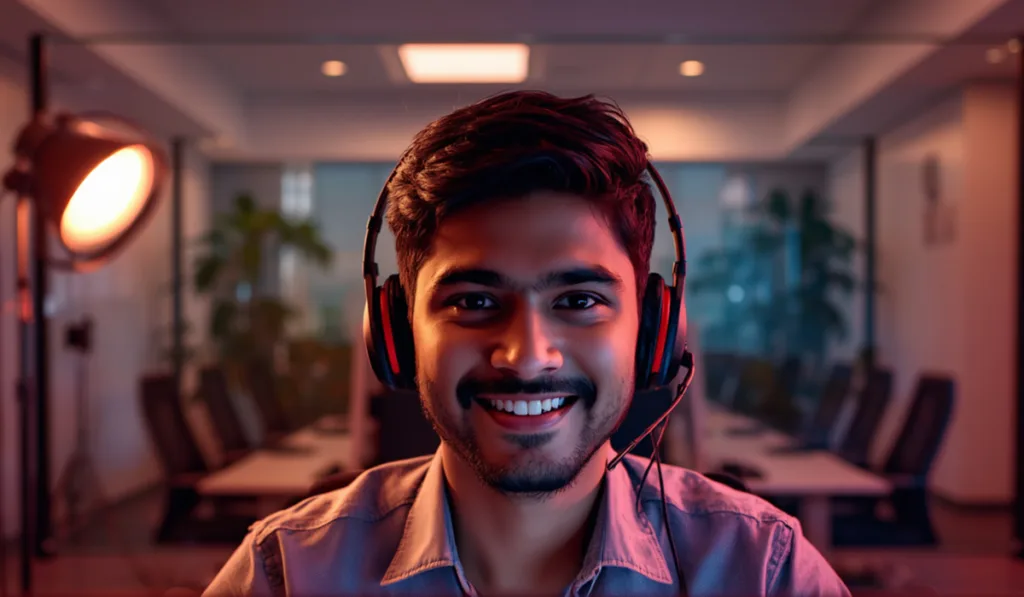
Remote interviews have changed the way companies assess candidates. In IT and ITES roles, your technical knowledge still matters, but the way you present yourself in a virtual interview can influence the first impression you make.
Think about it this way: if your interviewer can’t hear you properly, your camera keeps freezing, your face is barely visible, or there’s a messy room behind you, they’re not getting the best version of you. And in a competitive hiring process, small things can make a surprisingly big difference.
The good news? You don’t need an expensive home studio or fancy equipment to look professional. You just need to get the basics right.
Here’s your simple technical checklist before stepping into a remote IT interview.
- Start With Your Audio
Clear audio is more important than having the perfect camera.
In IT and ITES interviews, you may have to explain technical concepts, troubleshoot scenarios, answer behavioural questions, or communicate with multiple people. If your voice keeps cutting out or there’s background noise, it becomes difficult for the interviewer to focus on what you’re saying.
Before the interview, check your microphone and make sure your voice sounds clear and natural.
A few simple things can help:
- Use wired earphones or a reliable headset if your laptop microphone picks up too much background noise.
- Avoid sitting directly under a fan or next to a noisy window.
- Keep your microphone close enough to pick up your voice without making your audio sound harsh.
- Test your microphone on the platform you’ll be using for the interview.
- If possible, record yourself speaking for 30 seconds and listen to the playback.
Don’t wait until the interviewer says, “Sorry, could you repeat that?”
That first impression matters.
- Get Your Lighting Right
You don’t need professional lighting to look professional.
The simplest solution is usually natural light. Sit facing a window so that the light falls evenly on your face. Avoid sitting with a bright window directly behind you, because your face can end up looking dark on camera.
If you’re interviewing at night or in a room without enough natural light, place a lamp or light source in front of you rather than behind you.
The goal is simple: your face should be clearly visible.
Avoid extremely bright lights directly above your head as well. They can create strong shadows under your eyes and make you look tired on camera.
Before the interview begins, turn on your camera and check how your face actually appears on screen. Lighting that looks fine to your eyes may look completely different through the webcam.
- Keep Your Background Clean and Distraction-Free
Your background doesn’t need to look like a corporate office.
It just needs to look intentional.
A plain wall, a neat bookshelf, or a clean corner of your room can work perfectly well. What you want to avoid is anything that constantly pulls attention away from you—piles of clothes, an unmade bed, people moving around, or a television playing in the background.
Remember, the interviewer is trying to evaluate you, not your room.
If you’re using a virtual background, choose something simple and professional. Overly designed or unrealistic backgrounds can sometimes look distracting, especially if the edges around your face or hair appear distorted.
When in doubt, keep it simple.
- Check Your Camera Position
Camera placement can make a bigger difference than you think.
Ideally, your camera should be around eye level. If you’re using a laptop, place it on a stable surface or raise it slightly with a laptop stand or a few sturdy books.
You should be able to see your head and shoulders comfortably within the frame.
Avoid placing the camera too low. Looking down at the screen can create an awkward angle and makes the interaction feel less natural.
Also, clean your camera lens before the interview. It sounds obvious, but a quick wipe can make your video noticeably clearer.
And while you’re at it, check your appearance on camera—not just in the mirror. The two can look surprisingly different.
- Test Your Internet Connection
For a remote IT round, this one is non-negotiable.
A poor internet connection can interrupt your answers, cause delays, or even disconnect you from the interview. That’s the last thing you want when you’re in the middle of explaining a technical problem.
Run a quick internet check before your interview and, if possible, use a stable Wi-Fi connection.
Even better, have a backup plan.
Keep your phone’s mobile hotspot ready in case your primary connection suddenly stops working. You don’t necessarily need to use it, but knowing that you have a backup can save you from panicking if something goes wrong.
- Close Unnecessary Applications
This is especially important for IT and technical interviews.
Before joining the call, close applications and browser tabs you don’t need. This reduces the load on your system and prevents unexpected notifications from appearing during the interview.
You don’t want a random WhatsApp notification, email pop-up, or streaming tab suddenly taking over your screen while you’re answering a question.
Also make sure your laptop is charged—or keep your charger connected.
It’s a small detail, but it’s one less thing to worry about.
- Do a Full Mock Test
The best way to know whether your setup works is to actually test it.
Do one mock interview using the same laptop, headphones, camera, internet connection, and platform you plan to use for the real interview.
Ask yourself:
Can I hear myself clearly?
Can the other person see my face properly?
Is my background distracting?
Is my internet stable?
Is my camera at eye level?
Are there any notifications that could interrupt me?
If you can, ask a friend or family member to join a short video call and give you honest feedback.
Sometimes the things you don’t notice are exactly what another person notices immediately.
Your Setup Is Part of Your Professionalism
A remote interview may happen from your bedroom, living room, or home office, but that doesn’t mean you should approach it casually.
In IT and ITES roles, communication, attention to detail, problem-solving, and professionalism are all part of the hiring process. Your virtual setup is one small way of demonstrating those qualities before you even answer the first question.
You don’t need the most expensive microphone. You don’t need a DSLR. You don’t need a perfectly designed background.
You simply need to show that you’ve prepared.
Because when the technical setup works smoothly, you can stop worrying about the screen—and focus on what actually matters: showing the interviewer what you bring to the table.
At ISP, interview preparation goes beyond simply preparing answers. The focus is on helping candidates become more confident, professional, and workplace-ready—because getting through an interview isn’t just about knowing what to say. It’s also about knowing how to show up.